Welcome to Gaia! ::

Angelgirl's Guild

Back to Guilds

my character info. Please do not post anywhere but in the "Other" forum 


Reply Tutorials
Basic Fire Tutorial

Quick Reply

Enter both words below, separated by a space:

Can't read the text? Click here

Submit

Verusia
Captain

Sparkly Shapeshifter

13,750 Points
  • Generous 100
  • Perfect Attendance 400
  • Elocutionist 200
PostPosted: Thu Sep 08, 2011 9:13 pm


User Image

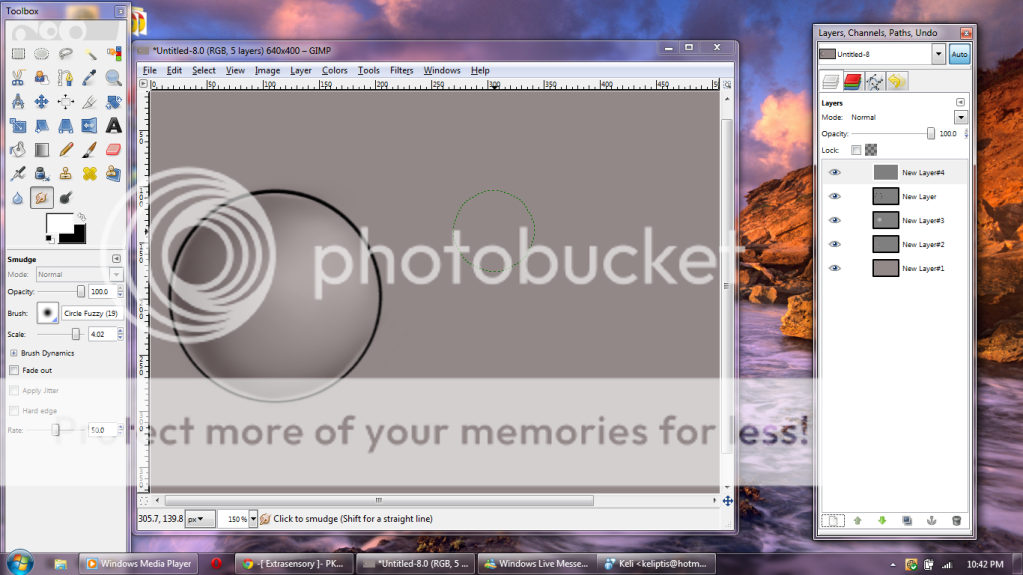
Here I'm going to show you the basics of making fire on this base. Here I have one sphere to the left and we are going to make a bit of fire on the right beside it.
PostPosted: Thu Sep 08, 2011 9:18 pm


User Image

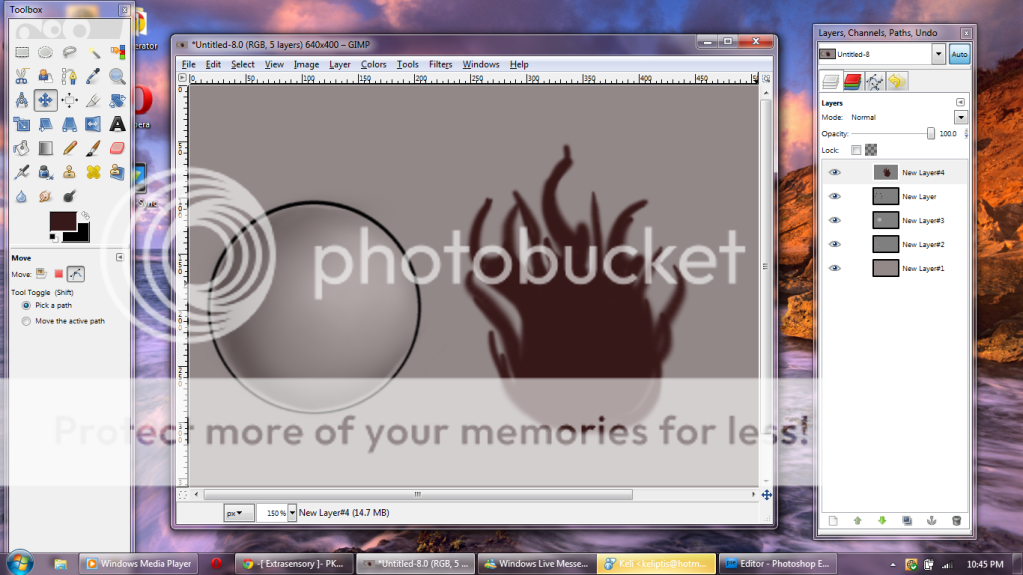
First begin by blocking in the Darkest color of your fire on one layer. When making fire, make sure to vary the lengths of the flames and make them in a sort of U shape. Take a look at this below that is a picture I just found on the web of tribal flames. Notice how they are in U shapes. You want to incorporate that into your designing.

User Image - Blocked by "Display Image" Settings. Click to show.

Verusia
Captain

Sparkly Shapeshifter

13,750 Points
  • Generous 100
  • Perfect Attendance 400
  • Elocutionist 200

Verusia
Captain

Sparkly Shapeshifter

13,750 Points
  • Generous 100
  • Perfect Attendance 400
  • Elocutionist 200
PostPosted: Thu Sep 08, 2011 9:20 pm


User Image

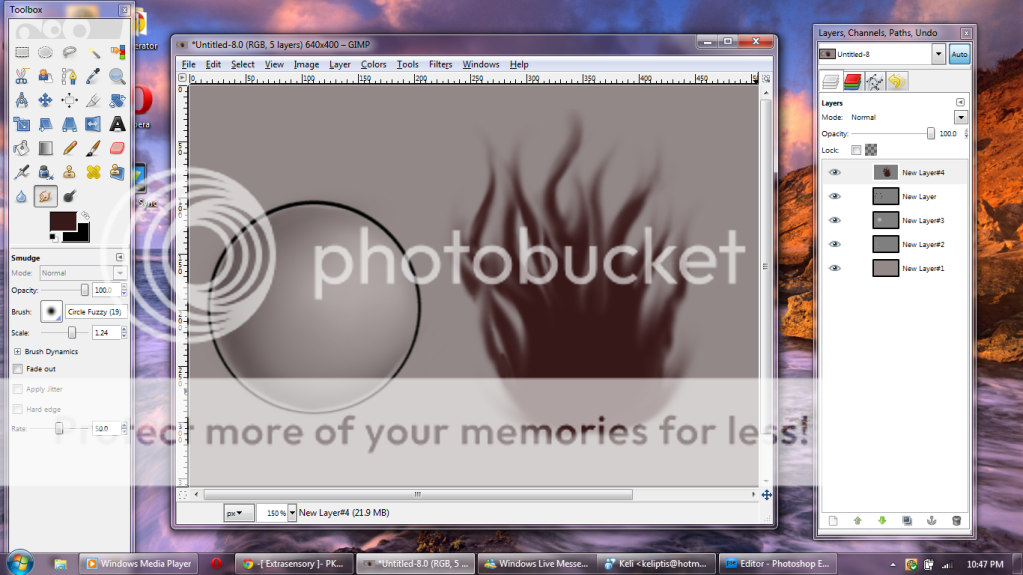
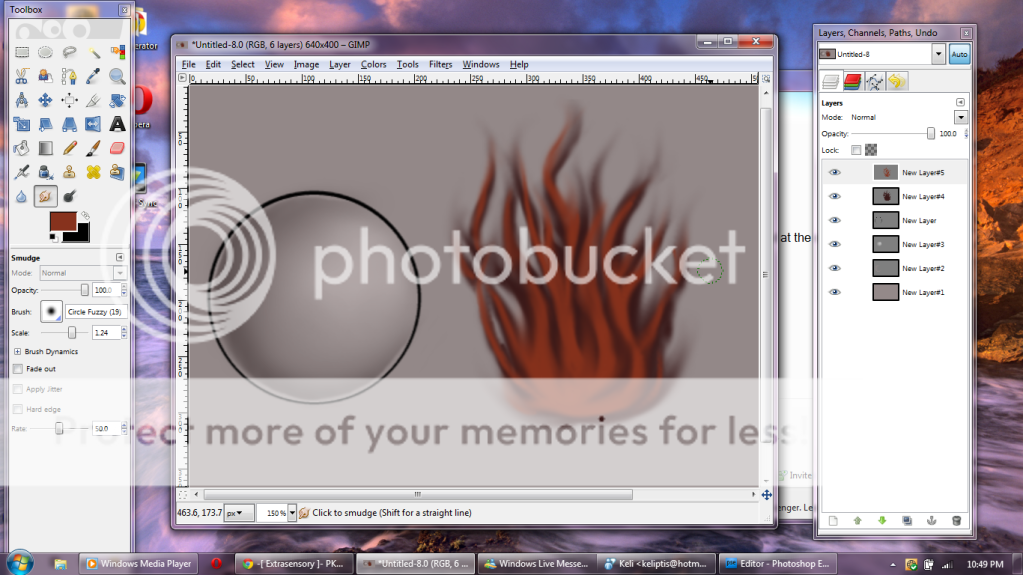
Now take your fuzzy smudge tool and smudge the tips out and the inner of the U shapes slightly inward toward the center. This gives it a more flame like appearance. Also add in any more wisps you want to add here or there.
PostPosted: Thu Sep 08, 2011 9:23 pm


User Image

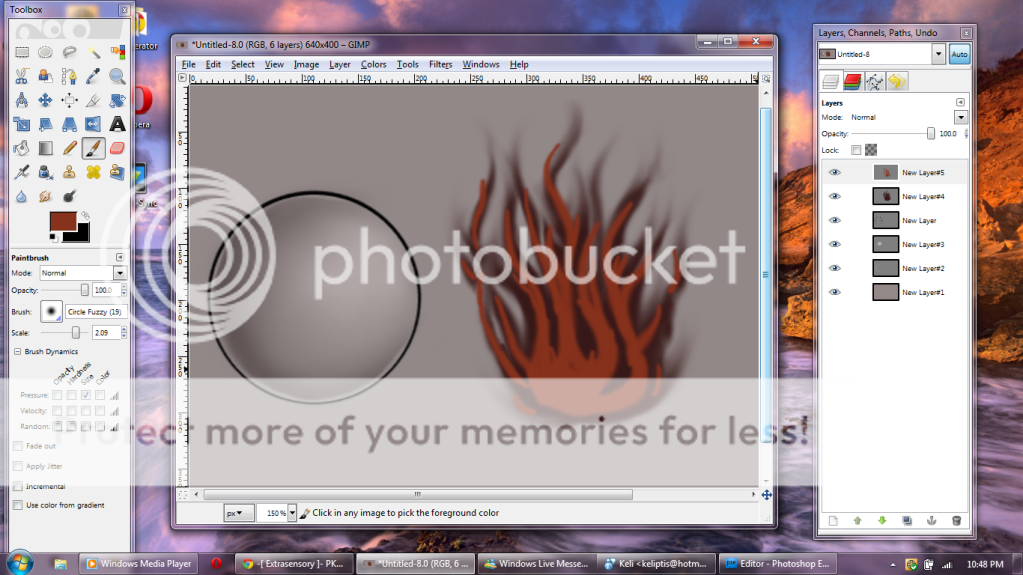
Next you are going to add a new layer and take a lighter more vibrant shade. Here I used a variation of Orange. You are going to block in the color where you will see the flames in this area. start at the bottom and make your way up. The bottom of the flame is going to be the brightest of all the flame. If you've ever looked at candles, the area the flame is around the wick is always the brightest so think of it like the area that is burning will be the brightest.

Verusia
Captain

Sparkly Shapeshifter

13,750 Points
  • Generous 100
  • Perfect Attendance 400
  • Elocutionist 200

Verusia
Captain

Sparkly Shapeshifter

13,750 Points
  • Generous 100
  • Perfect Attendance 400
  • Elocutionist 200
PostPosted: Thu Sep 08, 2011 9:24 pm


User Image

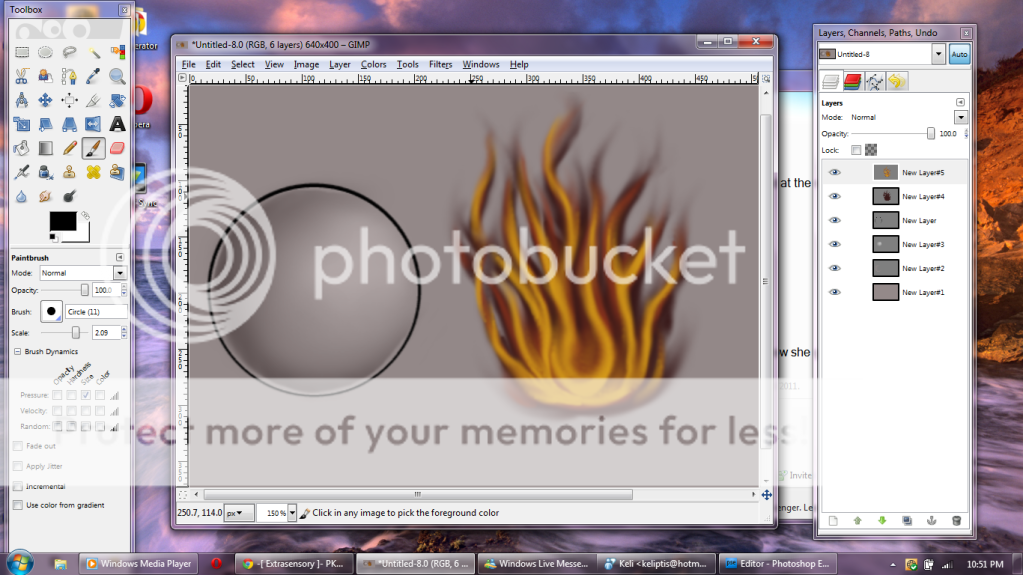
Once again you are going to smudge this layer just like the previous layer
PostPosted: Thu Sep 08, 2011 9:25 pm


User Image

Next add another new layer. These are all "normal" layers btw.

We are going to add another more vibrant color onto this layer. This layer I made a yellow for and you are going to block in the color just like you did before with the other two, starting at the bottom and making your way up. Then smudge it.

Verusia
Captain

Sparkly Shapeshifter

13,750 Points
  • Generous 100
  • Perfect Attendance 400
  • Elocutionist 200

Verusia
Captain

Sparkly Shapeshifter

13,750 Points
  • Generous 100
  • Perfect Attendance 400
  • Elocutionist 200
PostPosted: Thu Sep 08, 2011 9:28 pm


User Image

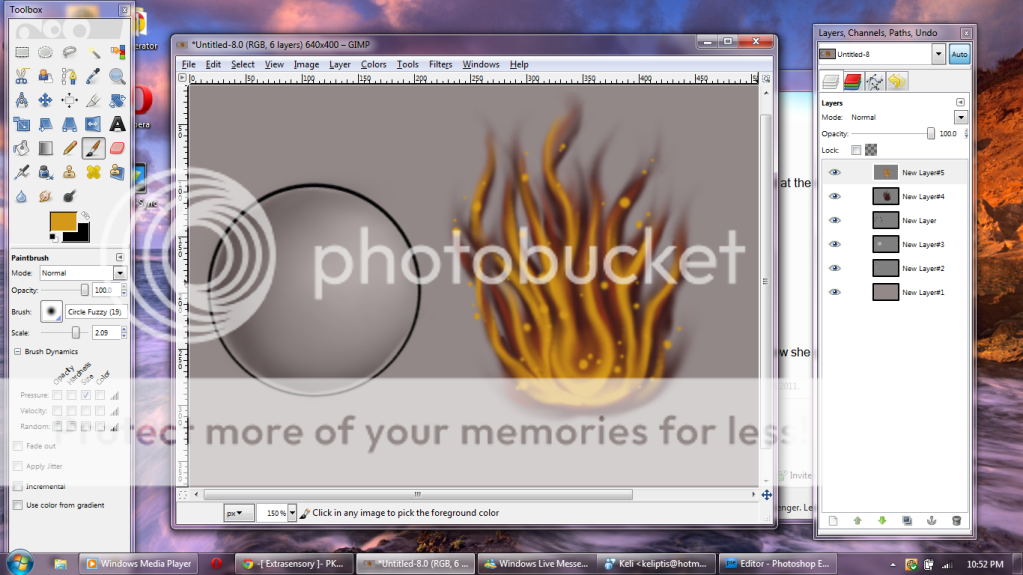
Next add the beginning of your sparks. You can either just add sparks in the flames like I did here or add smaller flames parting from the base of the flames above like I did in the Adam pet of the Lineart tutorial. There are different ways to do this but here I just put the sparks on the same layer as the yellow. You can choose to do this or make a different layer if its easier for you.
PostPosted: Thu Sep 08, 2011 9:30 pm


User Image

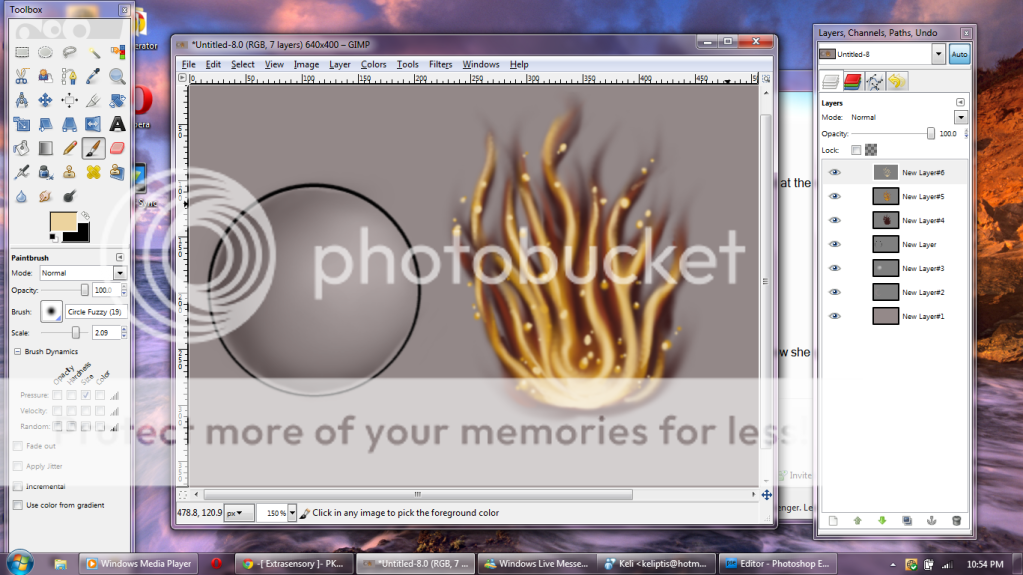
Now make the last of the flame layers. You are going to take the color of your previous layer color and make it very white. Not all the way white, but an off white of your color. Mine was Yellow, so I made this a very very light yellow.

Block in the color as before having the bottom be the brightest and with the most of this color. Smudge it and then add a small dot of it to each of the sparks.

Verusia
Captain

Sparkly Shapeshifter

13,750 Points
  • Generous 100
  • Perfect Attendance 400
  • Elocutionist 200

Verusia
Captain

Sparkly Shapeshifter

13,750 Points
  • Generous 100
  • Perfect Attendance 400
  • Elocutionist 200
PostPosted: Thu Sep 08, 2011 9:35 pm


User Image

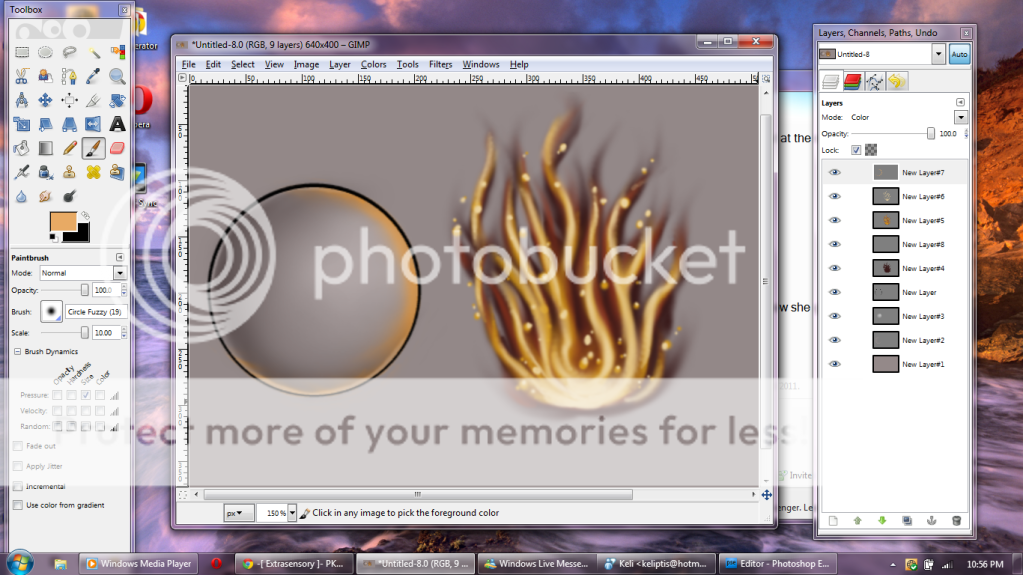
Last you need to add the highlights the flame creates on your pet or object. This is what that sphere I made was for.

First create a new layer above all the layers and make it a "color" layer. In GIMP you don't have to be very careful with this layer being on the outside of you lineart but in photoshop you need to be. In GIMP multiply, overlay, and other layers do not show up on transparency but if you were to do this in photoshop it would make what is over transparency be turned into that of a "normal" layer.

Now we take a color that is of that of the flames or from a color that is around those colors. I chose a yellow orange for this and you are going to go along the edge of the lineart where the light from the fire will hit it. On a pet you would need to do this on everything but I'll make another tutorial showing that directly on a pet. This is just the basics.

Once you have this color on the object or pet blocked in, smudge it a bit to make it less vibrant along the edges and change the opacity if it is too bright.
PostPosted: Thu Sep 08, 2011 9:36 pm


User Image

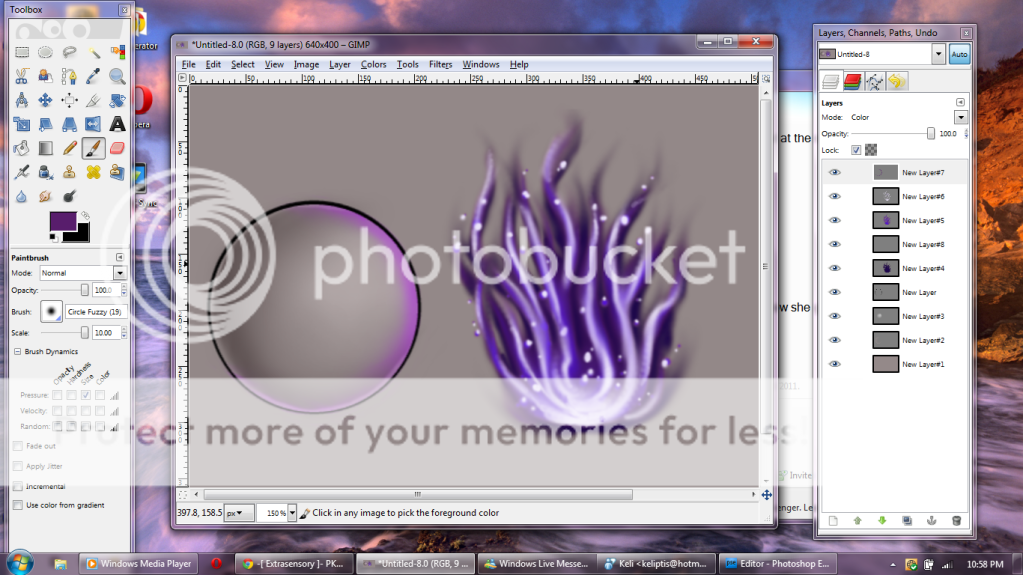
After you have that finished you can lock the transparency of all the layers and change the color as you wish

Verusia
Captain

Sparkly Shapeshifter

13,750 Points
  • Generous 100
  • Perfect Attendance 400
  • Elocutionist 200
Reply
Tutorials

 
Manage Your Items
Other Stuff
Get GCash
Offers
Get Items
More Items
Where Everyone Hangs Out
Other Community Areas
Virtual Spaces
Fun Stuff
Gaia's Games
Mini-Games
Play with GCash
Play with Platinum