|
|
|
|
|
|
|
|
|
 Posted: Fri Aug 08, 2008 6:31 pm Posted: Fri Aug 08, 2008 6:31 pm
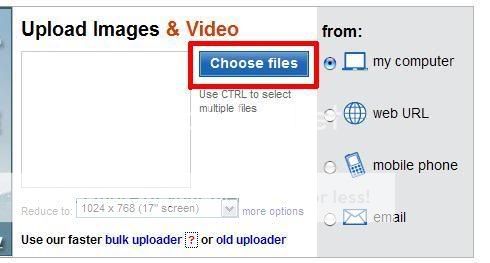
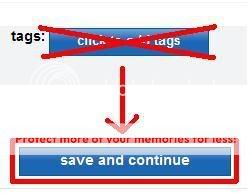
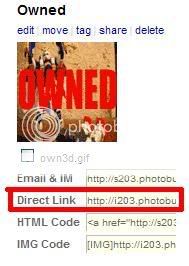
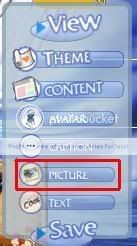
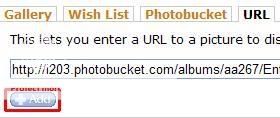
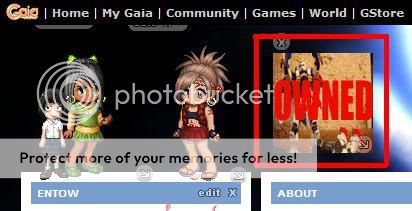
This is the profile guide that will help you do whatever it is that you want to do to your profile. This guide will have four main sections: - Pictures (this post) - Music ( post 2) - Videos ( post 3) - Layouts ( post 4) - Others ( post 5-9) Pictures: arrow First off, I'll start with pictures. The first thing you should do is create a photobucket account. Once there, click the "join now" button and fil out all the required fields. arrow After your account is made, you are ready to start uploading whatever pictures you like/want on your Gaia profile. Make sure your on the main page, and click the "upload" button. arrow Select the picture you want, and say "open" arrow After it has uploaded your picture, give it a name and a description (optional), but don't worry about the tags. arrow Click save, and continue back to the main page. arrow Once on the main page, see the picture you just uploaded, and find the "direct link" code, then copy it (just click the box). arrow Now, head back to you Gaia profile and click on "edit profile" arrow Once the mini navigation box pops up, click on the "picture" button. arrow go over to the "url" tab, and paste the code you previously copied. arrow Finally, click "add" and your done. Once added, all of the pictures will appear on the top left of your profile, just under the "games" and "world" tabs. Do this to whatever pictures you like. All you gotta do is upload, copy code, and paste it in. You can do the same exact thing with your background, just instead of clicking "picture in the mini navigation box, you would click on "theme" then follow all the same steps. Tips:On the mini navigation box, you can also click on the "avatar" button to add pictures of friend's avis. Once added, just drag the pictures to wherever you want them on your profile. If a picture wont load, try checking the code you copied. You may have accidentally copied the wrong one. If it still doesn't work, try re-uploading the picture.
|
 |
|
|
|
|
|
|
|
|
|
|
|
|
|
Posted: Fri Aug 08, 2008 6:32 pm
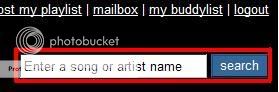
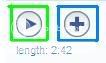
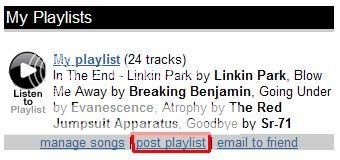
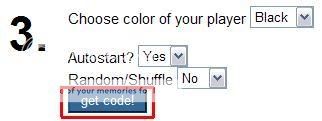
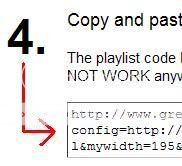
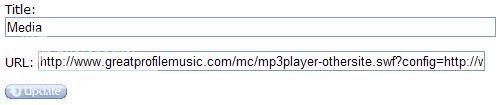
Music:My favorite way of adding music to a profile is by adding a playlist created by a site called projectplylist. They have all their music stored online, so you don't have to upload anything, but you can still rnjoy everything. So here is a guide on how to create a playlist, and add it to your profile. First, you will have to sign up and create an acount at project playlist. After you have created a username, set your password, and so on, you should be ready to start adding songs. Find the search bar, and type in the name of your favorite songs OR bands. Now a list of everything related to what you typed in should appear. Simply look for the title of the song you were looking for, but do NOT click on the song title. To the left of the song, there should be two buttons. The left one (green) is to listen to the song you ave chosen to make sure it is the right one, and that it works. The second button (blue) is to add the selected song to your playlist. If it is your first song, it may ask you to create a playlist, which is very easy. Once you have created your playlist, and added as many songs as you wish, click on the "my account" link to the far left, just below the search bar. This will take you to your main account page. Once there, look for the playlist that you just created. Just a little ways below that, you should see a link to "post" your playlist. Once that link is clicked, it will take you to the next page to choose from a list of sites that you wish to host your playlist on. You will want to choose Gaia (of course), also listed as option "C" On the next page, choose the playlist you want (if you created multiple), but if this is your first time, there should only be one, so it's an obvious choice. Next, choose the options you want your playlist to have. And then you must click on the "get code" button. Color: Dictates the color of your playlist. Autostart: Yes - Plays music automatically | No - User must manually start music upon each profile visitation. Random Shuffle: Plays songs in a random order. On the next page, select ALL of the code in the box a little below the text. Almost done now. After you have copied the code, go to your Gaia profile, and select "edit profile" on the top right of the page. Now search for the "media" section. If there is no media section, select "content" on the mini navigation box (see previous post if your lost), and select the "add" button under the text that says media. Now select "edit" on the media box. Now simply name the playlist whatever you want (optional) and paste the code int the box labeled "URL" Finally, click the "update" button. Now, finally, Save your profile by clicking "save" on the mini navigation box, and your all done. Tips:While editing your profile, you may drag the media section to any part of the profile that you want your music to be. Also, if you create multiple playlists and decide to put them on Gaia, it may be wise to only set one on autoplay, instead of having several songs playing at once. If any sonf becomes invalid, or stops playing, just re-log into your account, and remove the errored song and replace it with a new one that works.
|
|
|
|
|
|
|
|
|
|
|
|
|
|
|
|
|
|
Posted: Fri Aug 08, 2008 6:34 pm
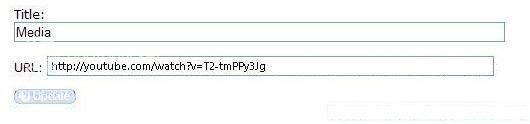
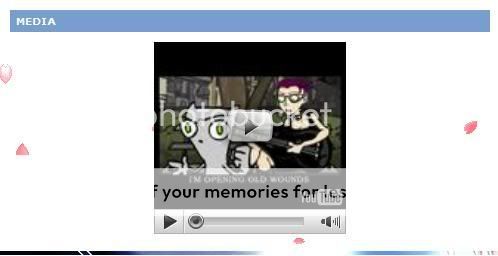
Videos:This guide will be made to help you put any videos that you want onto your profile, such as a youtube video. The first step is to go to the video site. Like I previously said, I will be referring to youtube in this guide. Next, just search for the video you want. Once you have found the video you desire, select and copy the url, which is on the address bar. After you have copied the url, go back to your profile, and edit it. Once on the editing screen, either create another "media" box via the "content" button on the mini navigation box, or find an existing media setcion and edit it. In the title section, put the name of the video, or just leave it as "media" if you wish. Next, paste the url that you previously copied into the "URL" section. Next, click the "update" button. Then lastly, save your file via the "save" button on hte mini navigation box. If done correctly, you now have the video on your profile in your mrdia section. Tips:Try to keep the content of your videos suitable for the site. Anything questionable, but is not too extreme (excessive violence, strong language, and/or suggestive themes) it would be wise to post an explicit warning in the video title. You can also drag the media sections to wherever you desire on your profile, though not as freely as pictures.
|
|
|
|
|
|
|
|
|
|
|
|
|
|
|
Posted: Fri Aug 08, 2008 6:35 pm
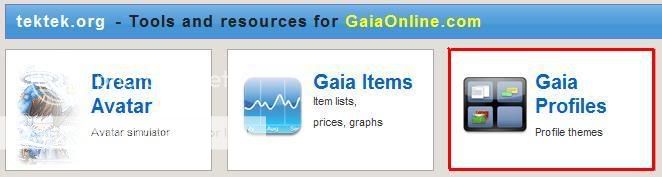
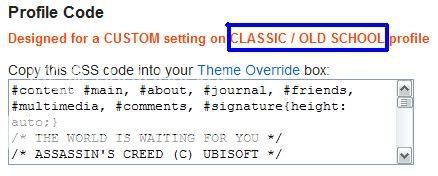
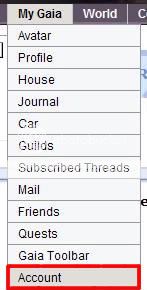
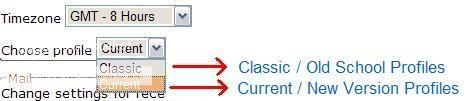
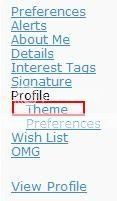
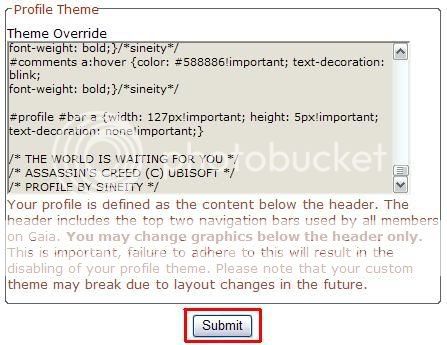
Layouts:This will be the last part of my profile guide, and It will be able to give you almost an entire new look for your profile. In order to get a layout, I suggest that you start off by going to tektek. Once there, click on the "Gaia Profiles" link in the top right of the screen. Once on the next screen, look for a layout that you find suitable for your profile. You can search for one by various means. But once one is found, locate the profile code just a little ways below the preview, and NOTE whether it is for a "current" or "old school" profile, this is vital. After you have copied the code, return to your Gaia and go to the "My Gaia" and "Account" section. Once on the next page, go a little ways down and find the "Choose Profile" option, which is just below the "Timezone" option, and above the "Mail" section. Once there, think back to what type of layout you chose, and pick the profile type that corresponds. After that is done, choose the "Theme" link on the right of the screen. Finally, paste the previously copied code into the box that appears titled "Theme Override" and click the "submit" button at the bottom. Congratulations, now your layout is complete and added to your profile. Tips:Try out multiple layouts. Many times the preview doesn't show as much as you would like to see, so just pick and choose until you find the one that suits you best. If your profile wont respond to the layout, make sure you chose the right profile type (current or oldschool). If you try to edit your profile and add any new content, but nothing works, the profile layout you chose may forbid some of the changes that you wish to make. So if the changes are vital or important, try another layout.
|
|
|
|
|
|
|
|
|
|
|
|
|
|
|
|
|
|
Posted: Fri Aug 08, 2008 6:37 pm
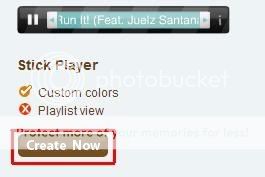
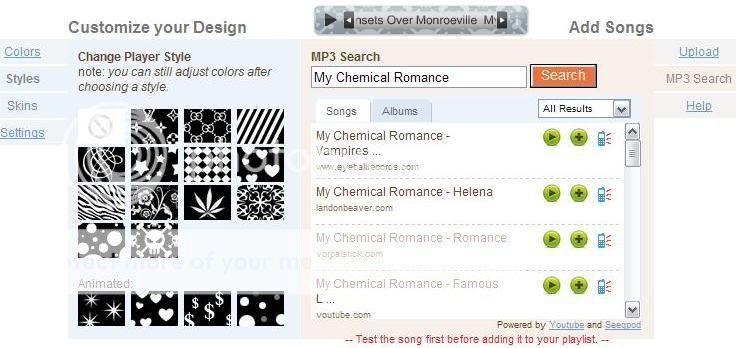
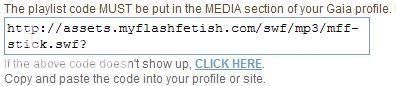
OTHER:Music:Well, this is for anyone who is having too much of a hard time with project playlist, or those who just feel like using a different means of music. This time, I will be guiding you to use a site called MyFlashFetish. Once on the site, locate the "create now" button to start on your playlist. Once on the next page, choose how you want your playlist to look via the "Customize your Design" section to the left. Once you pick a suitable design (previewed a little above the "add songs section"), move to the section on the right labled "Add Songs" and search for any songs that you like. Check the songs with the left button (triangle) and add them to your playlist with the right button (+). After you have accumulated however many songs you like, choose whether to have your playlist autoplay, and whether or not to shuffle. Then choose "Save (Get Code)" after giving it a title. This part is important, DO NOT copy the code given, it is in a different format, and WONT work on Gaia. Instead, click on the "Edit Playlist" button near the top of the screen. Next, find the playlist that you previously made and named. Locate the "Get Code" link near the bottom of your playlist, and click it. On the next page, choose the Gaia picture (third one over I believe). The next screen contains the code that you must copy. Once copied, go to your Gaia profile, edit it, and paste the code into your "media" section under the "URL" section. If you need any help on this part, see the previous music guide, and use the same procedure. Tips:This site is a little more tricky than project playlist, but has some cool features of it's own. Just play around on the site a bit until you master it.
|
|
|
|
|
|
|
|
|
|
|
|
|
|
|
Posted: Fri Aug 08, 2008 6:39 pm
Other:Layouts:Now comes the Skem9 Layout guide. Skem9 is an alternate site to tektek.org that you can go to to choose some layouts for your Gaian profile. All of the layouts are made for the "current" type profiles, so make sure it is set to that style when trying any of the layouts from this site. Ok, first, you have to go to the Skem9 Site. Now, once there, near the top of the screen, choose the "Layout" tab.  Next, choose the "Gaia Online Layouts" box located on the lower half of the page. 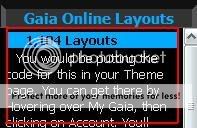 This brings you to the main layout page. On this page, select a layout category. 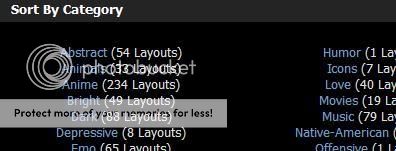 Now, you will get a list of all of the profile layouts that fit the category thatyou chose. Just take your time, and choose whatever profile you like. Once you see a profile, choose the "Preview" link just below the picture. 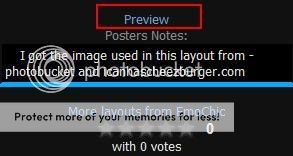 After seeing the profilein full effect on the preview page, copy all of the code in the upper right of the screen. 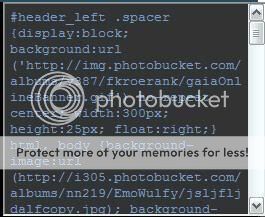 Now, all you have to do is paste the code in the "Theme" section of your account settings on Gaia. If your not sure how to get there, see the previous layout section. Generator:If by any chance you don't like any of the provided layouts, Skem9 also has a profile generator so you can create your own custom layout. The first thing to do is go to the main Skem9 page, and choose the "Generators" tab.  Near the top of the screen, you should see a bunch of different generator links. You want to , of course, click on the "Gaia" link. 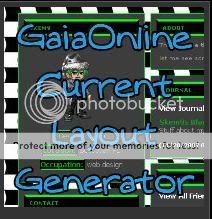 There are way too many option in the generator to describe them all. However, the two tabs that you want to pay the most attention to are the "background" and "Etc." tabs, as they will make the greatest aesthetic improvement to your profile with the lest changes.  After you have created a profile to your liking, look for the "Generate Code" button just above the preview section.  Then copy the code in the box that appears and paste it into your account's "Theme" section. Tips:There are MANY options available in the generator, so just play around with them. Always remember to check out the changes you made in the generator by frequently looking at the live preview at the bottom of the page. When creating or choosing a profile, be creative. Pick one that really expresse you and have fun.
|
|
|
|
|
|
|
|
|
|
|
|
|
|
|
|
|
|
Posted: Fri Aug 08, 2008 6:40 pm
|
|
|
|
|
|
|
|
|
|
Posted: Fri Aug 08, 2008 6:42 pm
|
|
|
|
|
|
|
|
|
|
|
|
|
Posted: Fri Aug 08, 2008 6:44 pm
|
|
|
|
|
|
|
|
|
|
|
|
|